 Sage.Education
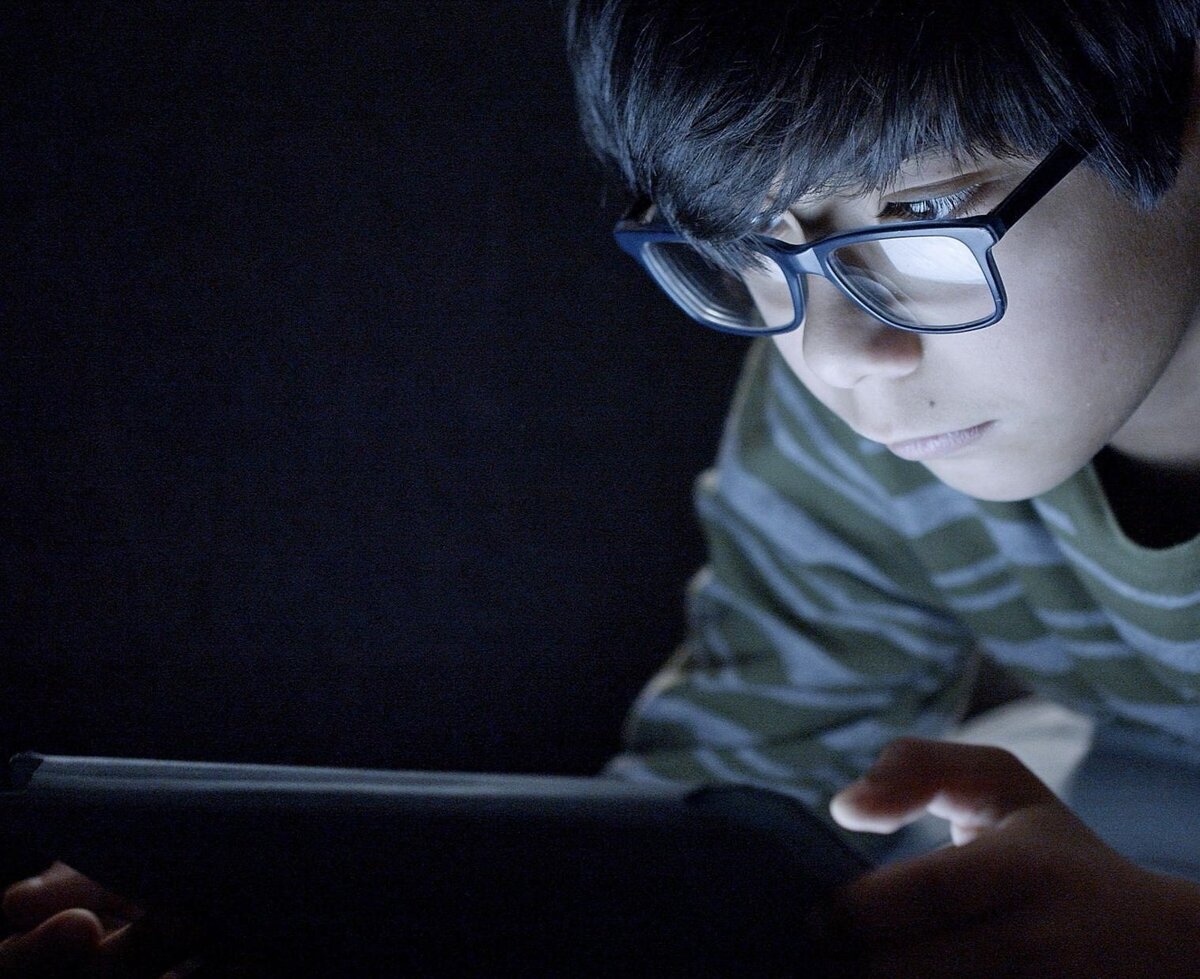
A parent opens their child's Chromebook. The screen lights up. Chrome loads. The child has not typed a word, has not visited a website, has not searched for anything. The browser is already talking.
It pings Google's Safe Browsing service. It checks for updates. It sends a unique installation identifier tied to this specific browser on this specific device. It contacts Google's suggestion servers, readying itself to autocomplete whatever the child types next. It reports telemetry: how fast the browser loaded, how much memory it used, whether anything crashed since last time.[1]
None of this requires the child to do anything. The browser does it on its own, in the background, before a single letter appears in the address bar. Parents install content filters to control what their child sees. Schools deploy web gateways to block certain sites. Both interventions assume the browser itself is neutral. It is not.
The browser is not a window. It is a one-way mirror. Your child looks out. The company that made it looks in.
The previous articles in this series covered why Google's AI-generated search answers are dangerous (Google's AI Is Lying to Your Kids) and which private search engines can replace Google (The Search Engine Your School Doesn't Know Exists). This article goes one layer deeper: the browser itself, the software that runs before the search engine, before the website, before anything. It is the first piece of software your child touches when they go online, and in many homes and most schools, it is Chrome.
Chrome runs on 93% of school Chromebooks in the United States.[2] Chromebooks account for over 60% of the global education device market, serving more than 38 million students worldwide.[3] The browser and the operating system are the same company: Google. The search engine is Google. The AI that sometimes generates false answers at the top of search results is Google. The data flows in one direction.
There are browsers built on the opposite principle. They send nothing before you type. They block trackers instead of enabling them. They treat your browsing history as yours alone. Here is what they are, who they are for, and what it takes to switch.
What a Browser Knows About You
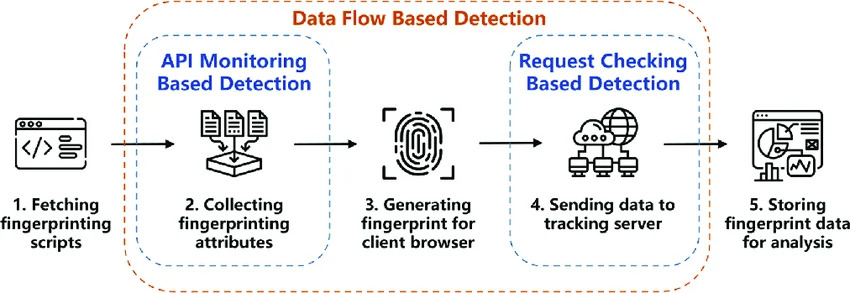
Browser fingerprinting collects dozens of signals from your device to build a unique identifier. Unlike cookies, you cannot see it, delete it, or opt out of it. Diagram: D. Zhang et al., "A Survey of Browser Fingerprint Research and Application," Wireless Communications and Mobile Computing (2022), licensed under CC BY 4.0.
Most people understand cookies. A website drops a small file on your device, and the file helps the site remember you next time. You can see cookies in your browser settings. You can delete them. Privacy laws like the GDPR require websites to ask before setting them.
Browser fingerprinting is different, and most parents have never heard of it. When you visit a website, that site can silently collect dozens of details about your device: your screen resolution, your operating system, your installed fonts, your graphics card model, your time zone, your preferred language, even the way your GPU renders invisible test images.[4] Taken together, these details create a profile so specific that it functions like a fingerprint. Nick Nikiforakis, a computer science professor at Stony Brook University who has studied fingerprinting since 2013, described the technique to IEEE Spectrum as an "arms race" between trackers and privacy tools.[5] Researchers at Texas A&M University confirmed in June 2025 that fingerprinting can identify individual browsers with over 90% accuracy.[6]
The critical difference: fingerprinting does not store anything on your device. There is nothing to delete. There is no cookie banner to dismiss. There is no setting to turn off. It happens in the background, without permission, and it works even in private browsing mode. Ad networks use fingerprints to track users across sites and sessions, building detailed profiles of browsing habits, shopping preferences, and search history without ever placing a cookie.[4:1]
Chrome does not block fingerprinting by default. LibreWolf does. Mullvad Browser does. Brave does. This is the difference between a browser that protects your child and one that does not.
The Browsers That Protect
Not every private browser is right for every family. Some are built for daily use. Some are built for maximum protection at the cost of convenience. Here is what each one does, who it is for, and what you trade off.
LibreWolf is the strongest recommendation for everyday use in families and schools. It is built on Firefox's code but strips out every piece of Mozilla telemetry. No data is sent home when you open it. Tracker blocking, fingerprint resistance, and cookie isolation are turned on by default. It looks and works like Firefox, which means most school web applications run without problems.[7]
The trade-off: LibreWolf does not update itself automatically the way Chrome or Firefox do. Updates must be installed manually or through a package manager. A school IT department can automate this, but a parent managing a single laptop needs to check for updates periodically.
DuckDuckGo Browser is the simplest option for younger children, especially on phones and tablets. Its most visible feature is the Fire Button: a single tap that instantly wipes all tabs, cookies, and browsing data. The browser starts clean every time. It blocks trackers by default and shows a letter grade (A through F) for every website, telling you at a glance how many trackers that site tried to load.[8]
The trade-off: the Fire Button wipes everything, including sites the child was logged into. Customization options exist to keep specific site data, but the default behavior is scorched earth. That is a feature for privacy. It is also a frustration for a child who has to log into their school portal every session.
Brave is the most familiar option for families already using Chromium-based browsers. It blocks ads and trackers by default, includes a built-in Tor window for anonymous browsing, and runs every Chrome extension. Switching from Chrome to Brave is nearly seamless: bookmarks, passwords, and settings can be imported in minutes.[9]
The trade-off: Brave the company has faced criticism for its cryptocurrency token (BAT) and a 2020 incident where the browser inserted affiliate codes into URLs without user consent. The company addressed the issue and changed its practices. Schools evaluating Brave should review this history. On its technical merits as a privacy browser in 2026, Brave is strong. On its corporate track record, it requires disclosure.
Zen Browser is a Firefox-based browser that removes Mozilla telemetry and wraps it in a modern interface: vertical tabs, split-screen views, and workspaces that let you organize browsing by context (school, personal, research). It is the most visually appealing option on this list, and for teenagers who resist switching to something that looks "old," Zen is an effective bridge.[10]
The trade-off: Zen is newer and less tested than LibreWolf or Brave. Users report occasional stability issues and missing extension compatibility. It is a strong daily browser for a teenager. It is not yet ready for fleet deployment across a school district.
Mullvad Browser is built by the Tor Project in partnership with Mullvad VPN. It inherits Tor Browser's anti-fingerprinting technology but connects to the regular internet instead of the Tor network. Every Mullvad Browser window looks identical to every other Mullvad Browser window, making fingerprinting nearly impossible.[11]
The trade-off: the anti-fingerprinting features break some websites. Layouts shift. Some login flows fail. Mullvad is not a daily driver for a child. It is a teaching tool for an older student learning about surveillance, or a secondary browser for sensitive research.
The Chromebook Problem
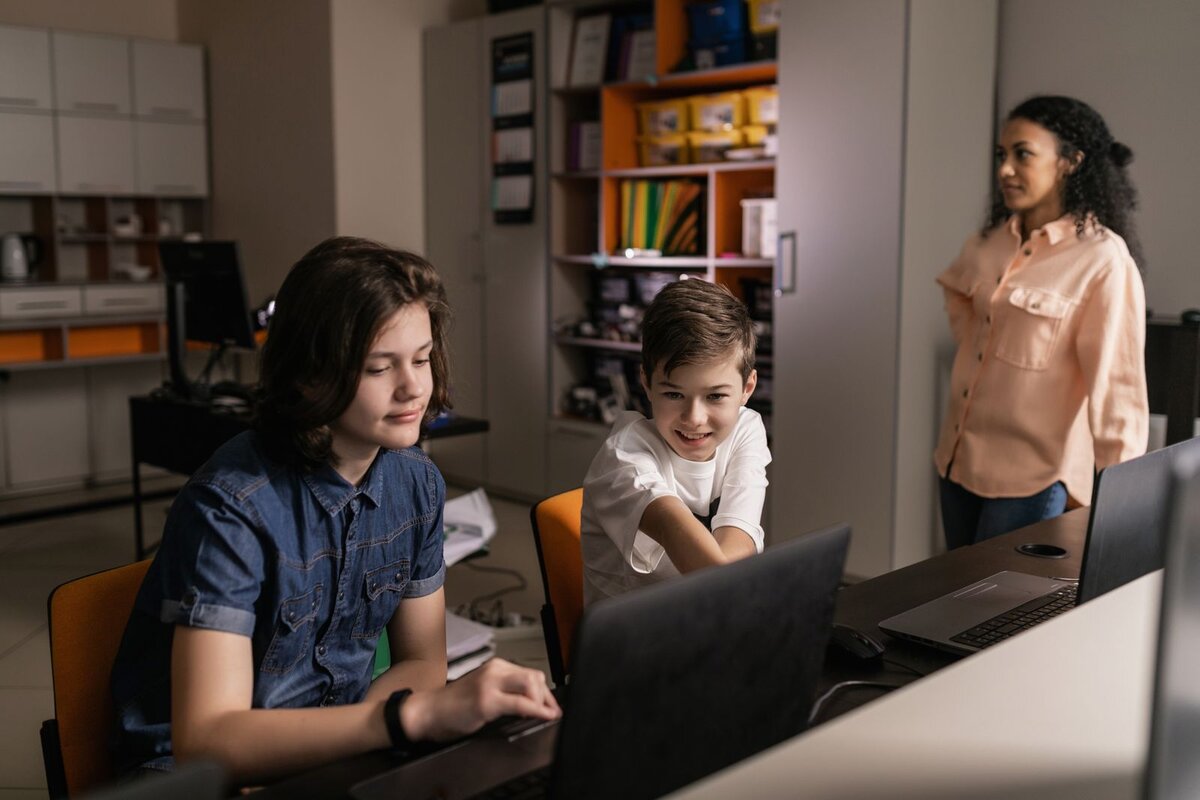
Chromebooks serve over 38 million students in K-12 schools globally. The browser, the operating system, and the search engine are all made by the same company. Photo: Alena Darmel / Pexels.
Here is the uncomfortable truth for schools: Chromebooks are the dominant classroom device, and Chromebooks run ChromeOS, and ChromeOS is Chrome. The browser is the operating system. You cannot uninstall it. You cannot replace it with LibreWolf. The device and the data collection are fused together.
This does not mean schools are powerless. Three practical options exist.
Start with the search engine.
This was covered in the previous article. A single policy change in the Google Admin console switches every managed Chromebook from Google Search to DuckDuckGo or Startpage. The browser is still Chrome. The data collection continues. But the search results no longer include AI-generated fabrications, and the queries no longer feed Google's advertising profile.
Add a second browser on non-Chromebook devices.
Many schools have a mix of devices. Windows and Mac laptops can run LibreWolf or Brave alongside Chrome. Making LibreWolf the default browser on non-Chromebook machines takes one group policy change on Windows or one configuration profile on Mac. Students on those devices get a browser that sends nothing home.
Protect family devices at home.
The school day is eight hours. The rest of the day belongs to the family. Parents can install LibreWolf on the family laptop, DuckDuckGo Browser on their child's phone, or Brave on any device in the house. The school Chromebook remains what it is. The home devices become what they should be.
Who Should Use What
Here is the plainest guidance we can offer.
Children under ten, on mobile devices: DuckDuckGo Browser. The Fire Button is intuitive. The tracker grades teach basic privacy concepts visually. The browser starts clean every session. Pair it with DuckDuckGo or Startpage as the search engine.
Teenagers, on laptops or desktops: LibreWolf or Zen. LibreWolf for maximum protection with no configuration needed. Zen for teens who care about how their browser looks and want workspaces to organize school and personal browsing. Pair either with DuckDuckGo, Startpage, or Brave Search.
School IT administrators, on managed non-Chromebook devices: LibreWolf or Brave. Both can be deployed via standard package management. LibreWolf offers stronger defaults. Brave offers easier migration from Chrome. Either one eliminates telemetry and blocks trackers on every device in the fleet.
Families who want to go further: Mullvad Browser as a secondary browser for sensitive searches. SearXNG as a self-hosted search engine. This combination provides the strongest privacy available without using the Tor network, and it teaches older children how surveillance works by showing them what it looks like when it stops.
The First Tool Your Child Touches
A parent opens the family laptop. They have installed LibreWolf. The screen lights up. The browser loads.
It does not ping a corporate server. It does not send a device identifier. It does not contact a suggestion engine or report telemetry. It does not reach out to anyone, anywhere, for any reason. It opens a blank page and waits for the child to type.
That silence is the point. A browser that says nothing until spoken to is not missing a feature. It is honoring a principle: that the first tool a child touches online should not be a tool that watches them.
The Chromebook in the backpack will still be what it is. The school's Google Workspace contract will not change overnight. But the device on the kitchen table, the phone in the child's pocket, the laptop they open for homework after dinner: those are yours to decide. The browsers exist. They are free. They are better than they have ever been.
Install one tonight.
Footnotes
Disclosure: This article is published by Sage.Education, a product of Startr LLC. Sage.Education builds open-source, self-hostable educational tools designed to be transparent and auditable. Startr LLC has no financial relationship with any browser or search engine mentioned in this article. The views expressed are those of the editorial board.
Browser Telemetry Explained: What Chrome, Firefox, Edge Report Home, State of Surveillance. See also What Data Does Chrome Send to Google and How to Stop It. ↩︎
ChromeOS Market Share In Education, Command Linux, 2026. ↩︎
Chromebook Market Share Statistics 2026, FOSS Post, 2026. Education accounts for 60.1% of the global Chromebook market, serving over 38 million K-12 students. ↩︎
What Is Browser Fingerprinting and How Does It Work?, Avast. See also What is Browser Fingerprinting, SEON. ↩︎ ↩︎
Browser Fingerprinting and the Online-Tracking Arms Race, IEEE Spectrum. Nick Nikiforakis, computer science professor at Stony Brook University, has researched browser fingerprinting since 2013. ↩︎
Websites Are Tracking You Via Browser Fingerprinting, Texas A&M University Engineering, June 2025. ↩︎
Is LibreWolf A Good Browser In 2026? Complete Review, WowTechHub, 2026. ↩︎
DuckDuckGo Private Browser Review In 2026, TechGolly, 2026. See also DuckDuckGo Browser - Everything You Should Know in 2026. ↩︎
Best Privacy-First Browsers 2026: Waterfox, Zen, LibreWolf, Factually, 2026. ↩︎
Zen Browser vs Firefox: Privacy, Speed & Customization in 2026, Sigma Browser, 2026. ↩︎
Best Privacy Browsers 2026: Firefox vs Brave vs LibreWolf vs Tor vs Mullvad, MeshWorld, 2026. ↩︎